
Introduction
Online education has changed the way students learn and teachers deliver lessons. Digital learning platforms now make it easier to turn traditional classroom activities into interactive experiences. One platform that has become popular among educators and students is Blooket.
Blooket dashboard is a commonly searched term for users who want to access their accounts, explore educational question sets, manage learning activities, and play interactive games. The dashboard provides a central place to access different platform features, including question sets, game options, profile settings, and available learning tools.
Blooket combines educational questions with game-based activities. Teachers can use it to review classroom lessons, organize live competitions, and assign independent practice. Students can answer questions, take part in challenges, and make learning more enjoyable.
Whether you are a teacher preparing classroom activities or a student interested in educational games, understanding the Blooket dashboard can help you use the platform more effectively.
This guide explains what Dashboard Blooket is, how to log in, how to create an account, its main features, and how teachers and students can use it for educational activities.
What Is Dashboard Blooket?
Dashboard Blooket refers to the main account interface users access after signing in to the Blooket platform. It acts as a central location where users can explore question sets, manage account information, discover educational content, and access available gaming activities.
Blooket makes educational practice more engaging by combining questions and answers with interactive game experiences. Instead of completing only traditional worksheets, students can review educational topics while participating in different challenges.
Depending on the account type and current platform design, the dashboard may include sections such as:
- Discover
- My Sets
- Market
- Blooks
- Stats
- Settings
Each section serves a different purpose. For example, dashboard blooket teachers can discover educational question sets, prepare classroom activities, and manage their content. Students can participate in games, practice subjects, and explore collectible characters.
Understanding the Main Purpose of the Blooket Dashboard
The main purpose of the Blooket dashboard is to make platform navigation simple and organized. It brings important account features and learning activities together in one place.
Teachers can use the dashboard to find suitable educational material, create question sets, and host games. Students can use available features to participate in activities and improve their understanding of different subjects.
For example, a science teacher preparing a lesson about the solar system can search for related questions through Discover. After selecting a suitable question set, the teacher can host a game and share the joining information with students.
This approach helps turn ordinary revision sessions into interactive classroom activities.
Who Can Use dashboard blooket?
Blooket is primarily designed for educational activities, but different users can benefit from its features.
Teachers: Teachers can create question sets, discover educational resources, host live games, and assign independent practice.
Students: Students can join classroom games, answer questions, explore learning activities, and collect Blooks.
Parents: Parents can become familiar with the platform and understand how their children use educational games.
Tutors and Educators: Tutors and other education professionals can use Blooket to support lessons, revision sessions, and knowledge assessments.
How to Access the Blooket Dashboard
Accessing the Blooket dashboard is relatively simple. Users generally need an internet connection and an account to access account-related features.
Follow these steps:
- Open a web browser on your computer, tablet, or smartphone.
- Visit the official website:
- Select the Login option.
- Enter your registered account information or choose an available sign-in method.
- Complete any required verification steps.
- After signing in, explore the available dashboard sections.
Once you access your account, you can navigate through the platform’s available features.
Visiting the Official Blooket Website
Always use the official Blooket website when accessing your account. This reduces the risk of entering personal information on unofficial websites that may use similar names or misleading login pages.
The official platform provides access to account features, educational question sets, games, and other learning resources.
If a third-party website offers a separate Blooket dashboard login, dashboard blooket check its authenticity before entering your username or password.
Opening the Dashboard After Login
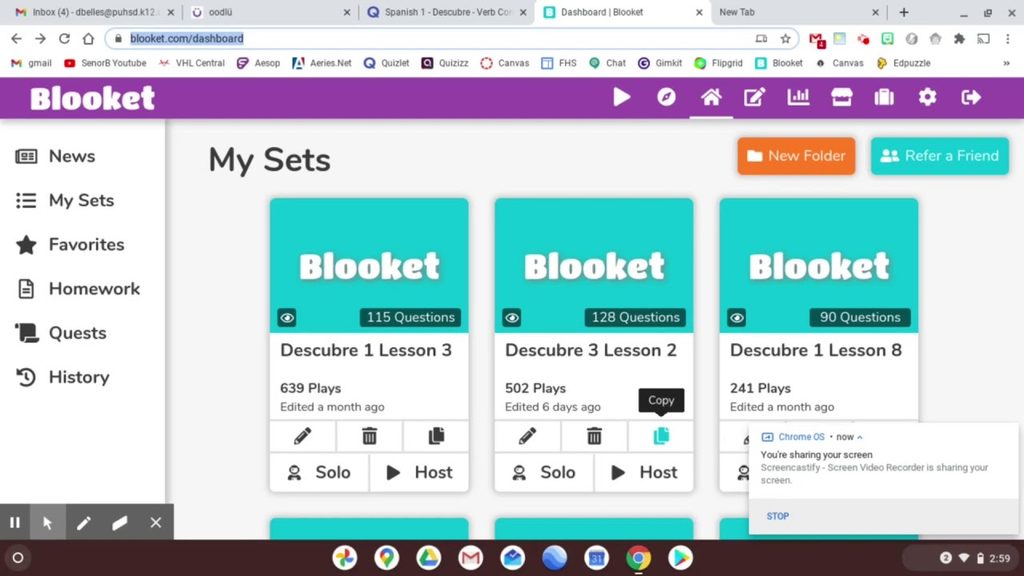
After successfully signing in, you can access your account interface. The available navigation options may vary depending on your account type and platform updates.
You may find dashboard blooket options for discovering question sets, managing saved content, viewing Blooks, and updating account settings.
It is helpful to explore the dashboard before hosting your first game. Understanding where important features are located can save time when preparing classroom activities.
How to Create a Blooket Account
New users can register for a Blooket account to access additional platform features. The registration process is designed to help teachers and students get started.
Teacher Account Registration
Teachers can create accounts to organize educational activities, prepare question sets, and host interactive games.
A typical registration process includes:
- Visit the official Blooket website.
- Select the Sign Up option.
- Follow the available registration instructions.
- Choose an appropriate account role if prompted.
- Enter the required information.
- Complete any verification steps.
- Sign in and explore the available teacher features.
Teachers should provide accurate information and follow the platform’s current age and account requirements.
Student Account Registration
Students may dashboard blooket create accounts when they want to access features such as saved activities, personal progress, and profile customization.
The registration process depends on the options currently offered by Blooket and any applicable school or parental requirements.
Students should follow their teachers’ instructions and use their accounts responsibly.
It is also important to understand that students do not always need an account to join a live Blooket game. A teacher can host a session and provide a Game ID that students use to participate.
Setting Up Your Profile
After creating an account, users can explore the available profile settings.
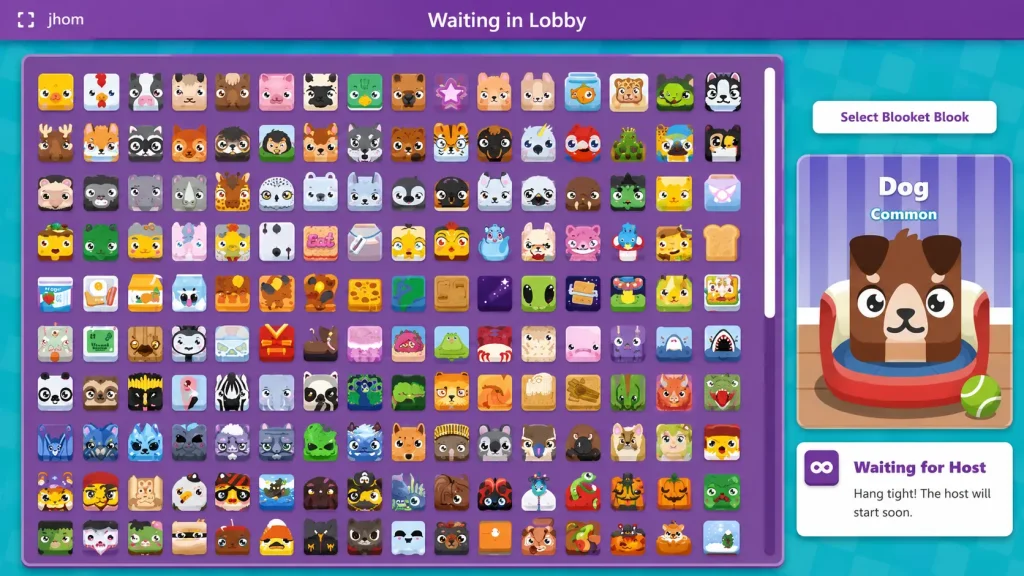
Depending on the platform’s current features, customization options may include selecting a Blook, choosing a banner, and updating a display title.
Keeping your profile organized makes it easier to recognize your account and manage your activities.
Blooket Dashboard Login Guide
The Blooket dashboard login process allows registered users to access their accounts and use available platform features.
Step-by-Step Login Process
Follow these instructions to sign in:
- Open the official Blooket website.
- Find the Login option.
- Enter your registered username or requested login information.
- Type your password.
- Select the sign-in button.
- Wait for your account page to load.
If your login information is correct, you should be able to access your account.
Login Using Google
Blooket may offer Google sign-in for eligible users. If this option is available, select it and follow the instructions displayed on the screen.
Choose the correct Google account and dashboard blooket complete the authentication process.
If you have multiple Google accounts on your device, check that you are using the one connected to your Blooket account.
Common Login Problems and Solutions
Sometimes users experience login difficulties because of incorrect passwords, browser problems, or internet connection issues.
Here are some common solutions:
Incorrect Password: Dashboard Blooket Check your password carefully, including uppercase and lowercase letters.
Forgotten Password: Use the available password recovery option and follow the instructions.
Page Not Loading: Refresh the page and check whether your internet connection is working properly.
Browser Problems: Try an updated browser or clear your browser’s cached data.
Account Access Issues: Confirm that you are using the correct account information. If the issue continues, contact Blooket support.
Avoid repeatedly entering incorrect login information, as this may create additional access difficulties.
Main Features of the Dashboard Blooket
One of the reasons users choose Blooket is its combination of educational tools and interactive gaming features. The dashboard provides access to different sections that support learning and account management.
1. Discover Question Sets
Discover helps users find educational content created by members of the Blooket community.
Question sets cover different subjects, topics, and educational levels. Users may find activities related to mathematics, science, history, English, and general knowledge.
Teachers can review available question sets before deciding whether they match their lesson objectives.
2. My Sets
My Sets provides access to question sets created or saved by a user.
Teachers can organize their educational material and return to previously prepared questions whenever they need them.
This saves preparation time because educators do not have to create a dashboard blooket new question set for every classroom activity.
3. Market
The Market is connected to Blooket’s reward system.
Players can use tokens earned through supported gameplay activities to access available Blook packs and other items.
This feature adds a collection element to the learning experience. However, rewards should remain secondary to the main educational purpose of the platform.
4. Blooks
Blooks are collectible characters used throughout the Blooket experience.
Players can build collections by unlocking different characters through available rewards and packs.
These digital characters make the platform more visually interesting, particularly for students who enjoy collecting virtual items.
5. Stats
The Stats section provides access to available account and activity information.
Depending on the account and current platform design, users may find profile-related details and customization options, such as their selected Blook, banner, or title.
The exact information displayed may change as Blooket updates its interface.
6. Settings
Settings helps users manage account-related information.
Depending on the available options, Dashboard Blooket users may be able to update account details, manage security information, and make changes to their profiles.
For account safety, users should protect their passwords and avoid sharing login information with others.
How Teachers Can Use the Blooket Dashboard
Blooket offers several tools that teachers can use to make classroom learning more interactive and engaging.
Create Educational Question Sets
Teachers can prepare question sets based on the subjects and topics they teach.
For example, a mathematics teacher can create questions about multiplication, fractions, percentages, and basic calculations.
An English teacher may prepare vocabulary exercises, grammar questions, and reading-related activities.
A useful question set should contain clear questions and accurate answers. Teachers should review the material before using it with students.
Host Live Classroom Games
Hosting live games is one of the most useful Dashboard Blooket activities.
Teachers can select a question set, choose an available game mode, and generate a Game ID or other joining information.
Students can then join the session using their own devices.
The teacher manages the hosted activity while students answer questions and participate in the selected game.
Assign Homework
Teachers can also use supported homework features to provide independent practice.
A homework activity allows students to complete questions outside a live classroom session.
Teachers can select a suitable question set, review the available assignment settings, and share the assignment information with students.
This approach gives students an opportunity to revise topics at their own pace.
Track Student Performance
Blooket provides game history and reports that can help teachers review classroom activities.
Depending on the available reporting features, teachers may be able to examine participation information, question results, and student performance.
These insights can help educators identify topics that students find difficult and plan additional revision activities.
Some advanced reporting options may depend on the subscription plan.
How Students Can Use the Blooket Dashboard
Students can use Blooket to practice educational topics, Dashboard Blooket participate in interactive games, and review classroom material.
Join Educational Games
Students can join a live game using the Game ID provided by their teacher.
The usual process is:
- Visit
- Enter the Game ID.
- Follow the joining instructions.
- Enter an appropriate display name.
- Select a Blook if the game provides that option.
- Wait for the host to start the activity.
Students should follow classroom rules and use suitable display names.
Play Solo Games
Blooket also supports solo activities in certain game modes.
Solo play allows students to practice questions independently without joining a live classroom session.
This can be useful when preparing for an examination, reviewing a difficult topic, or practicing at home.
Earn Tokens and Collect Dashboard Blooket
Students can earn tokens through supported gameplay activities.
These tokens can be used in the Market to access available Blook packs and rewards.
Collecting Blooks adds an entertaining element to the learning experience and can encourage participation.
View Game Progress
Students can use available account and activity features to understand their participation and progress.
They may also review questions and answers when teachers provide opportunities for revision.
The main goal should always be improving subject knowledge rather than focusing only on game scores.
How to Host a Game Through the Blooket Dashboard
Hosting a game is an important feature for teachers who want to introduce interactive activities into their classrooms.
Step 1: Choose a Question Set
Sign in to your Blooket account and open My Sets or Discover.
My Sets allows you to select your own question sets, while Discover helps you find public question sets created by other users.
Review the questions and answers to make sure they are suitable for your lesson.
Step 2: Select a Game Mode
After choosing a question set, select the Host option.
You can then review the available game modes and choose one that matches your teaching objectives.
Different modes provide different experiences, Dashboard Blooket so consider the students’ age group, subject, and available class time.
Step 3: Adjust Game Settings
Before starting, review the available game settings.
Depending on the selected game mode, you may be able to adjust options such as question order, player names, late joining, and other gameplay preferences.
Choose settings that make the activity suitable for your classroom.
Step 4: Generate a Game Code
Select Host Now to open the game lobby.
Blooket will provide joining information for participants. Depending on the session, this may include a Game ID, QR code, or joining link.
Step 5: Invite Students and Start
Share the game information with your students.
Once participants have joined and everything is ready, select Start.
Students can then answer questions while the teacher manages the activity.
Before beginning, make sure everyone understands the rules and knows how to participate.
Blooket Dashboard on Mobile and Desktop
Blooket can be accessed through compatible web browsers on different devices.
Using Blooket on Smartphones
Teachers and students can access the platform through a smartphone browser.
Mobile access is useful for joining games, Dashboard Blooket reviewing educational content, and managing supported account features.
For a smoother experience, use an updated browser and a stable internet connection.
Accessing Blooket on Computers
Desktop computers and laptops provide a convenient way to manage question sets and host classroom activities.
A larger screen can make it easier for teachers to review questions, adjust game settings, and display live activities to students.
Browser Compatibility
If Blooket does not work correctly, try using an updated version of a commonly supported browser.
You can also refresh the page, clear temporary browser data, or temporarily disable extensions that may interfere with the website.
Common Blooket Dashboard Problems and Fixes
Although Blooket is designed to be straightforward, Dashboard Blooket users may occasionally experience technical difficulties.
Dashboard Not Loading
If the dashboard does not load, check your internet connection first.
You can also try these solutions:
- Refresh the browser page.
- Close unnecessary browser tabs.
- Try another updated browser.
- Clear cached website data.
- Check whether the platform is experiencing a temporary service issue.
Login Errors
Login errors may occur when users enter incorrect account information.
Check your username Dashboard Blooket and password before trying again. Make sure that your keyboard settings are correct and that Caps Lock is not causing a problem.
If you cannot remember your password, follow the official recovery process.
Forgotten Password
If you forget your password, open the official login page and look for the password recovery option.
Follow the instructions provided by Blooket to regain access to your account.
When creating a new password, choose something secure that other people cannot easily guess.
Game Joining Problems
Students may have trouble joining a game because of an incorrect Game ID, an expired session, or an unstable internet connection.
Ask the teacher to confirm that the game Dashboard Blooket is active and that the joining information is correct.
Then try entering the Game ID again.
Slow Performance or Freezing
Slow performance may result from a weak internet connection, an outdated browser, or limited device resources.
Close unnecessary applications and browser tabs before trying again.
If the problem continues, contact the platform’s support team for further assistance.
Benefits of Using Dashboard Blooket
Blooket provides several benefits for teachers and students when it is used as part of a balanced learning approach.
Interactive Learning Experience
Traditional learning activities can sometimes become repetitive. Blooket introduces game-based practice that makes answering questions more interactive.
Students can review educational topics while participating in different challenges.
Easy Classroom Management
Teachers can use the dashboard to access question sets, host games, and organize learning activities.
Having several tools available through one account interface makes classroom preparation more convenient.
Improved Student Engagement
Interactive games can encourage students to participate in classroom activities.
The combination of questions, challenges, and rewards may make revision sessions more enjoyable.
However, teachers should choose appropriate activities to ensure that students remain focused on learning.
Performance Tracking
Available game reports provide useful information about student participation and performance.
Teachers can use Dashboard Blooket these results to identify difficult questions and topics that may require additional explanation.
This information can support lesson planning and targeted revision.
Flexible Learning Opportunities
Blooket supports different ways of practicing educational material.
Teachers can host live classroom activities, while students can participate in supported solo games and homework assignments.
This flexibility makes the platform useful in different learning environments.
Is Blooket Dashboard Free to Use?
Blooket offers a free Starter plan and a paid Blooket Plus subscription.
The free version provides access to important educational features, including creating and discovering question sets and using supported game modes.
Blooket Plus offers additional tools for users who need more advanced features.
Depending on the current subscription options, paid benefits may include:
- Additional game modes.
- Folders for organizing question sets.
- Larger live games.
- Enhanced performance reports.
- Question bank features.
- Verified curriculum content.
- Additional question-set management tools.
Blooket’s published plan information has listed different player limits for Starter and Plus. These limits and other subscription benefits can change, so users should check the official pricing page before making a purchase.
For many basic classroom activities, the free version may be sufficient.
Tips for Getting the Best Experience from Blooket
Using Blooket effectively involves more Dashboard Blooket than opening the dashboard and starting a game. Teachers and students should use the platform with clear learning objectives.
Choose Relevant Question Sets
Always select questions that match the subject and learning objectives.
For example, a mathematics activity should focus on the calculations students are currently studying rather than unrelated topics.
Review Questions Before Hosting
Teachers should check the wording and answers before starting a game.
This helps prevent confusion and ensures that students receive accurate educational information.
Select Suitable Game Modes
Different game modes offer different experiences.
Choose a mode based on the lesson objective, students’ age group, and available class time.
Keep Students Focused on Learning
Games should support education rather than distract from it.
After an activity, teachers can discuss difficult questions and explain why particular answers are correct.
Protect Account Information
Never share your password with other users.
Students should follow their school’s account requirements and online safety rules. Teachers and parents can also help younger users develop responsible internet habits.
Dashboard Blooket for Modern Education
Digital learning platforms are becoming an important part of modern education. Teachers are looking for effective ways to make lessons more engaging, while students benefit from activities that are interactive and easy to understand.
Blooket brings these ideas together by combining educational questions with game-based experiences.
Its dashboard makes it easier to access the platform’s main tools. Teachers can prepare question sets, host classroom games, and review available reports. Students can participate in activities, practice different subjects, and enjoy the platform’s collectible rewards.
However, Blooket should be treated as a supporting educational tool rather than a complete replacement for textbooks, classroom discussions, or detailed instruction.
When teachers combine interactive games with clear explanations and regular revision, students can benefit from a more balanced learning experience.
Frequently Asked Questions (FAQs)
1. What Is Dashboard Blooket?
Dashboard Blooket is the main account interface of the Blooket platform. It allows registered users to access available features such as Discover, My Sets, Market, Blooks, Stats, and Settings.
2. How Do I Access My Blooket Dashboard?
Visit the official Blooket website at https://www.blooket.com/, sign in using your account information, and explore the available dashboard features.
3. Is Blooket Free for Students?
Yes. Blooket offers a free Starter plan with access to core educational features. Some additional tools and benefits require a paid subscription.
4. Can Teachers Create Games on Blooket?
Yes. Teachers can create or discover question sets, select supported game modes, host live activities, and invite students to participate.
5. Can I Use Dashboard Blooket on My Mobile Phone?
Yes. Blooket can be accessed through a compatible mobile browser. Some activities may be easier to manage on a computer because of the larger screen.
6. Do Students Need an Account to Join a Blooket Game?
No. Students generally do not need an account to participate in a live game. They can use the Game ID or other joining information provided by the host.
7. What Should I Do If My Blooket Dashboard Is Not Working?
Check your internet connection, refresh the page, update your browser, and clear cached website data. If the issue continues, contact Blooket support.
8. What Are Blooks in Blooket?
Blooks are collectible characters used in the Blooket platform. Players can unlock and collect them through supported reward activities.
9. Can Teachers Track Student Performance?
Yes. Teachers can access available game history and reports to review participation and performance. Some advanced reporting features may require a paid subscription.
10. Can I Play Blooket Without a Teacher?
Blooket supports solo game activities that allow users to practice independently. Other activities may require a hosted session or an assignment link.
11. What Is the Difference Between Blooket Starter and Plus?
Starter is the free plan that provides access to core features. Plus is a paid subscription that offers additional benefits, which may include more game modes, enhanced reports, folders, and larger live games.
12. Is Blooket Safe for Classroom Learning?
Blooket is designed for educational activities. However, teachers, parents, and students should follow online safety practices, protect account information, and use appropriate display names.
Conclusion
Dashboard Blooket provides a convenient way for teachers and students to access educational games, question sets, account features, and learning activities. Its combination of interactive questions and different game modes makes it a useful platform for classroom practice and independent revision.
Teachers can use the dashboard to discover educational content, prepare question sets, host live games, assign homework, and review available performance reports. Students can join activities, practice different subjects, and enjoy the platform’s collectible rewards.
Whether you are accessing Blooket for the first time or exploring its features in more detail, understanding the dashboard can help you make better use of the platform.
For the best experience, always use the official Blooket website, choose relevant educational content, and keep your account information secure. When used thoughtfully, Blooket can make learning more interactive, organized, and enjoyable.